Before you start
This page gets your computer ready, and explains the handful of ideas every later page takes for granted. If you have programmed before, skip to Install the tools.
What you are about to do
A program is a list of instructions a computer follows. People write those instructions as plain text in files, called source code, or just code, which you can open in any text editor.
Computers can't run that text directly. A program called a compiler reads your source code, checks it, and translates it into something the computer can run. If the compiler finds a mistake, it stops and tells you what is wrong and on which line. This will happen to you many times a day, as it does to everyone who programs. An error from the compiler is not a sign that you have failed. It is the compiler helping you. Read the message, because it usually says what to do.
Rust is the language you will write in, and its compiler is called rustc.
Rust is known for being strict: it refuses many mistakes that other languages
let through and that would crash a game while someone is playing it. That
strictness is why some of the code here looks unfamiliar at first. You will
meet each odd-looking piece when it comes up, with what it means.
What a game is, to a computer
A game feels alive, but it is a simple loop that runs about 60 times a second:
- Read the input. What did the player press since last time?
- Update. What changes because of that?
- Draw. Paint the whole picture again.
One trip round that loop is a frame. Everything you see move in a game is this loop drawing a slightly different picture 60 times a second.
What an engine is
Every game needs that loop, and also a window, a way of reading the keyboard and of drawing letters, somewhere to keep saves, and much more. A game engine is a set of code that already does those things, so you write only what makes your game your game. Shuyi Engine is the engine you will use. It does the loop, and you hand it your game's screens and rules.
A Shuyi game draws with glyphs, letters and symbols in a grid of cells, like
a very colorful page of text. That is why your first game needs no art at all:
your player is an @. Shuyi can draw pictures too, and the idea you'll learn in
step 2, that a game's look is a separate thing from what happens in it, is what
makes that possible later.
What a terminal is
A terminal is a window where you type commands to your computer instead of clicking. Programmers use one because most tools for writing programs are commands. You need only a few.
- Windows: open the Start menu and type
Terminal. - macOS: open Spotlight (Cmd+Space) and type
Terminal. - Linux: you probably know already. Often it is Ctrl+Alt+T.
A terminal is always "in" one folder of your computer. To move into a folder,
type cd (it stands for change directory) and its name, then press Enter:
Everything a command makes or reads is in that folder unless you say otherwise. When a page shows you a grey box like the one above, it means: type this into your terminal and press Enter.
A text editor
You need a program to edit code. Any will do, but Visual Studio Code is free and works on every system, and with its rust-analyzer extension it shows mistakes as you type and tells you what a thing is when you hover over it, a great help while you learn. In VS Code, use File, then Open Folder, to open your game's folder, and you'll see all its files down the side.
Install the tools
You need two things: Rust, and Shuyi's own tools.
Rust. Go to rustup.rs and follow what it says for your system. On Windows, the installer offers to set up what else Rust needs, which is the simplest choice: say yes. When it finishes, close your terminal and open a new one, then check it worked:
If it prints a version number, you have Rust. Cargo is the tool you will use the most. It runs the compiler for you, fetches the code your game depends on, and runs your game and your tests.
Shuyi's tools. This fetches the engine's tools and compiles them, which takes a few minutes the first time:
Then ask them whether your computer has what a game needs. If something is missing, this says what, and how to install it:
If anything here doesn't go as described, the quick start has more detail for each system.
How to read these pages
Each step builds on the one before. Do them in order, and type the code rather than copying it if you can. Typing it makes you read it.
Compare when you are stuck. Each step's page has a link to its whole project, exactly as it should be when you finish that step. If your game won't build, open the file you changed and compare it with that copy, line by line. Every programmer does this.
Code boxes that show a change look like this. A line starting with - is
what the file says now, and a line starting with + is what to change it to.
You don't type the - or the +.
In crates/game/files/palette.ron:
- "highlight": "#ffd75a",
+ "highlight": "#5a9bff",
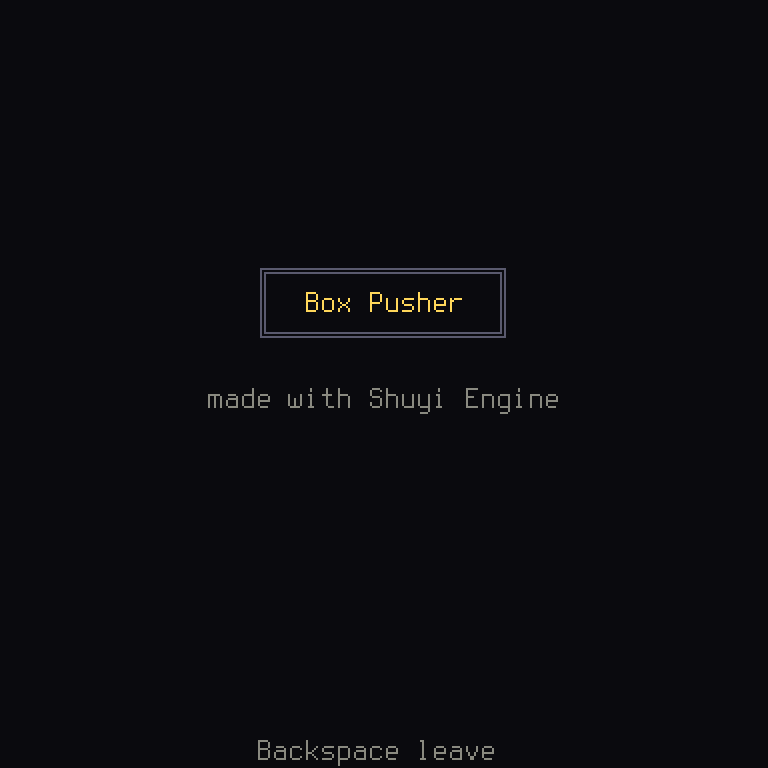
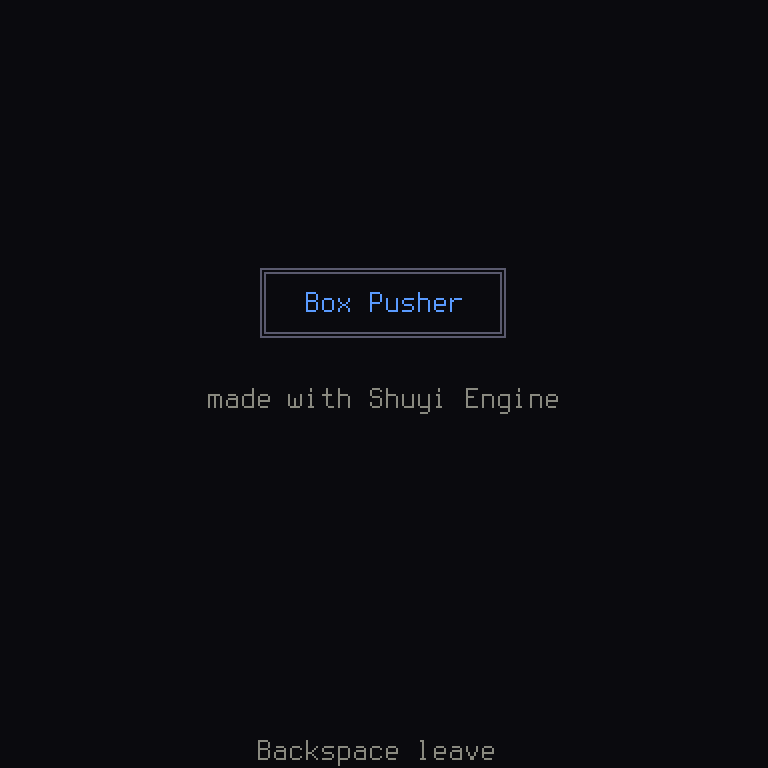
Before and After pictures show what such a change does, taken from a real copy of the game with that change made, so what you see is what you will get. Things to try are optional, and you should put them back afterwards, because later steps assume the game as the page left it. An easy way is to press undo in your editor, or to keep a copy of the folder.
Words in this font are code, or names of files or commands, exactly as you
would type them.
Three kinds of note come up throughout:
Rust: explains a feature of the language, on the line that first uses it.
Shuyi: explains a part of the engine and what it is for.
Game idea: explains how games are made in general, whatever the engine.
You don't need to remember all of it. The glossary has every word, with a link back to where it was explained.
Ready? Make the game.